Trading libraries for MetaTrader 5
Shopping cart
The cart is empty
MetaTrader 5
Top Rated Products MT5



Overview
FastMove is a panel with 5 buttons, a notification area and a text entry. Its goal is to enable quick and simple execution.
Buttons:
- MOVE - Move the interface
- BUY - Start of buy process
- SELL - Start of sell process
- L - Select quantity of lots
- % - Select quantity of percent of balance
Keyboard inputs
- 'ESC' - Cancels the operation or return to the previous stage.
- 'F' - Lock or unlock interface to prevent accidental executions.
- M - Move the interface.
- P - Exchange between pending orders or market orders.
Areas:
- Notifications - This area displays notifications of the various states of the program and the commands sent.
- Text input - Here you enter the number of lots or the percentage of risk capital depending on the option selected.
Entry selection:
You can choose between two modes of entry to the market:
- L - Select this option to configure a fixed lot value with a single left mouse click.
- % - Select this option to set a dynamic lot value according to your stop loss.
Process for Market orders:
The process starts with a click of the left mouse button on one of the two operations buttons (BUY MARKET or SELL MARKET).
To execute each stage press a click of the left mouse button.
It has 3 stages, the first 2 are executed by the user, the third automatically by the program. Successful execution of each stage starts the next, if the execution is not successful the program is in the current stage.
To return to the previous stage the user must press the 'ESC' key. If it is in stage 2 it will return to stage 1 and if it is in stage 1 the process will be canceled.
Execution diagram:
BUTTON -> click -> STAGE 1 -> click -> STAGE 2 -> click -> EXECUTION
STAGE 2 -> 'ESC' -> STAGE 1 -> 'ESC' -> CANCELLATION
- In the execution stage you can not return to the previous stage or cancel.
Stages:
- STAGE 1: In this stage the program generates a horizontal red line that the user can move only below the current price or above the current price depending on the button pressed (BUY or SELL). This line is to configure the price of the order's StopLoss.
- STAGE 2: In this stage the program generates a green horizontal line that the user can move only above the current price or below the current price depending on the button pressed (BUY or SELL). This line is to configure the price of the order's TakeProfit.
- STAGE 3 (EXECUTION): At this stage the program executes an internal process to send the order to the market. First it sends a market order with the current price and then modifies the stop loss and take profit levels of that order. This is done because some brokers do not support sending the order with the Stop and Profit levels included.
Process for Pending Orders:
BUTTON (BUY OR SELL PENDING) >> click >> STAGE 1 >> click >> STAGE 2 >> click >> STAGE 3 >> click >> EXECUTION
STAGE 3 >> 'ESC' >> STAGE 2 >> 'ESC' >> STAGE 1 >> 'ESC' >> CANCELLATION
In the execution stage, it is not possible to return to the previous stage or cancel.
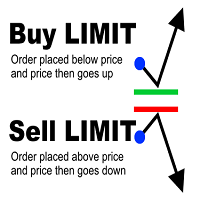
- STAGE 1: In this stage the program generates a blue horizontal line that the user can move to choose the execution price of the order.
- STAGE 2: In this stage the program generates a horizontal red line that the user can move only below the execution price or above the execution price depending on the button pressed (BUY PENDING or SELL PENDING), this line is to configure The price of the stop loss order.
- STAGE 3: In this stage the program generates a horizontal green line that the user can move only above the execution price or below the execution price depending on the pressed button (BUY PENDING or SELL PENDING), this line is for set the price of the take profit order.
EXECUTION: Same as in market order.
Input parameters
- Lots - Value of lots with which you want to enter the market.
- Percent Risk - Percentage balance risk with which you want to enter the market.
- Slippagge - Deviation of the price in points.
- Playsounds - Enable or disable playback of program sounds.
- Stopdistance - Minimum distance in points from the current price to Stop Loss.
- Minimum distance from the current price to the pending order - It is the minimum distance in points from the current price at which the pending order can be entered, it must be greater than 20 points.